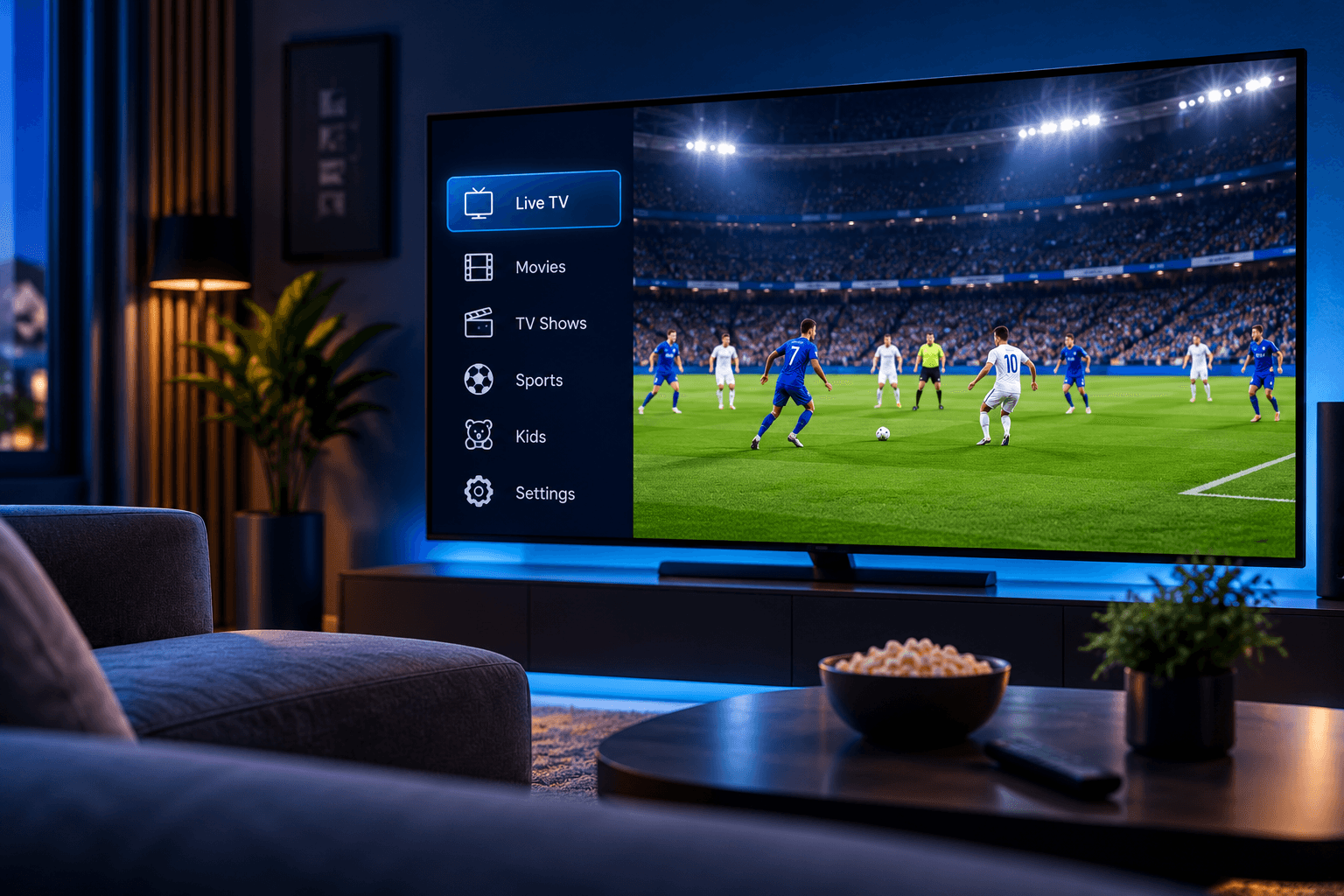
How to Set Up IPTV on a Samsung Smart TV
A step-by-step walkthrough for getting your subscription running on a Samsung Smart TV, from app installation to your first stream.
Samsung Smart TVs running Tizen OS are one of the most popular ways to stream at home, and getting your BestIPTVFast subscription running on one takes only a few minutes. This guide walks through the full process from a blank home screen to your first stream.
Before You Start
Make sure your Samsung TV is connected to a stable internet connection, either over Wi-Fi or a wired Ethernet connection, and that you have completed your BestIPTVFast order so your account details are ready.
Step 1: Open the Samsung App Store
From your TV's home screen, navigate to the Apps section. This opens the Samsung Smart Hub, where you can search for and install applications.
Step 2: Install a Supported Player
- Use the search function in the Smart Hub to find a supported IPTV player app.
- Select the app and choose Install.
- Wait for the installation to complete, then open the app from your Apps list.
Step 3: Sign In With Your Account Details
Open the app and enter the account details you received after completing your order. Double-check for typos, since these details are case-sensitive on most players.
Step 4: Start Streaming
Once signed in, you should see your content library load automatically. If nothing appears right away, try restarting the app or your TV's internet connection.
Troubleshooting Tips
- Restart your TV if the app fails to load after installation.
- Confirm your internet speed is sufficient for streaming.
- Reinstall the app if your account details are not being accepted.
For a broader look at every device we support, visit our Devices page, or read our How It Works guide for an overview of the full process from order to first stream.